---
title: "Agenda"
description: "Keep agenda styling consistent, navigate chapters, and create PowerPoint sections"
---
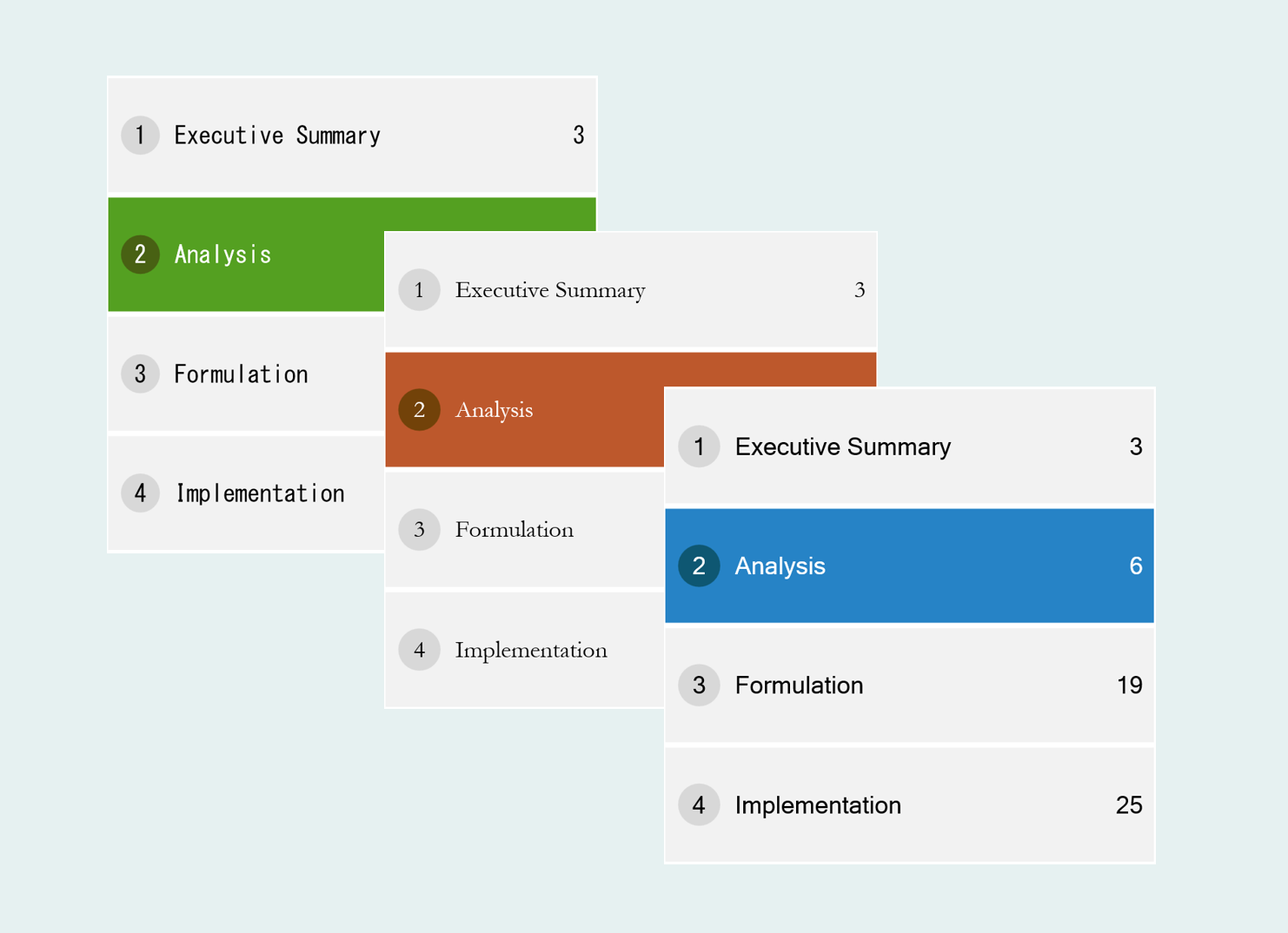
Use a Grunt **Agenda** to organize chapters and keep its styling consistent across slides. Changes to fonts, sizes, and agenda configuration carry across the slides containing that Agenda object.
 ## Navigate to a chapter
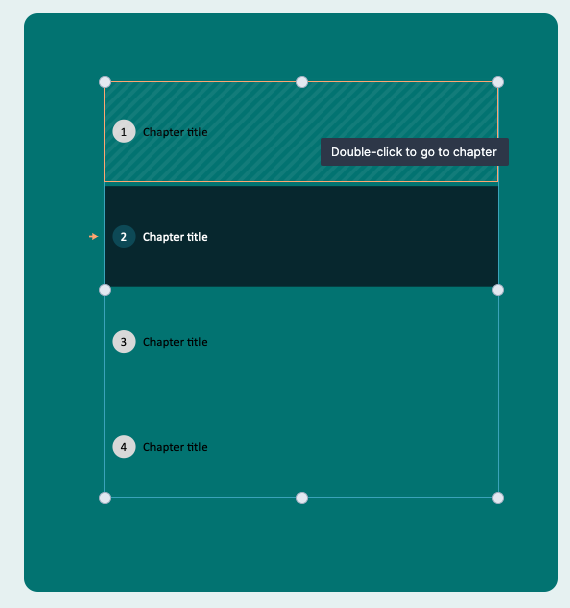
Double-click a chapter in the Agenda to jump to the slide where that chapter begins.
## Navigate to a chapter
Double-click a chapter in the Agenda to jump to the slide where that chapter begins.
 ## Create PowerPoint sections
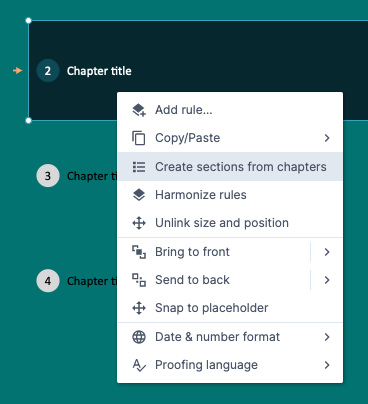
Once your chapters are in the right order, right-click the Agenda and choose **Create sections from chapters**. Grunt creates the corresponding PowerPoint sections.
If you later rename chapters, run the command again to update the section titles.
## Create PowerPoint sections
Once your chapters are in the right order, right-click the Agenda and choose **Create sections from chapters**. Grunt creates the corresponding PowerPoint sections.
If you later rename chapters, run the command again to update the section titles.
 ## Add sub-chapters
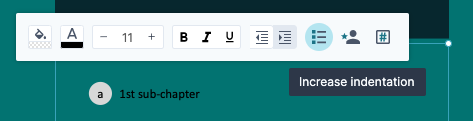
The Agenda supports two indentation levels. Use the indentation controls to organize chapters and sub-chapters into a two-level structure.
## Add sub-chapters
The Agenda supports two indentation levels. Use the indentation controls to organize chapters and sub-chapters into a two-level structure.
 ## Add a free-text column
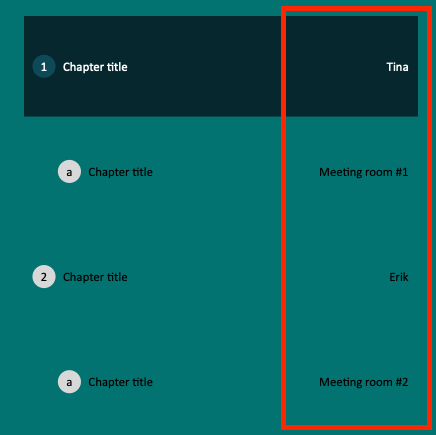
Enable the **Responsible** column to add text beside each chapter. You can use it for presenters, owners, rooms, or other agenda details.
## Add a free-text column
Enable the **Responsible** column to add text beside each chapter. You can use it for presenters, owners, rooms, or other agenda details.

 For a video walkthrough, watch [the Agenda tutorial](https://www.youtube.com/watch?v=kIj27nH23Qg).