---
title: "Content Library"
description: "Find, insert, and share reusable slides, images, and Grunt objects"
---
The **Content Library** gives your team a shared place for presentations, slides, images, and Grunt objects. Company content is available when your organization has the Content Distribution add-on and grants you access.
Open **Library** from the **Grunt** ribbon. Your company workspace appears in the navigation on the left.
## Insert reusable content
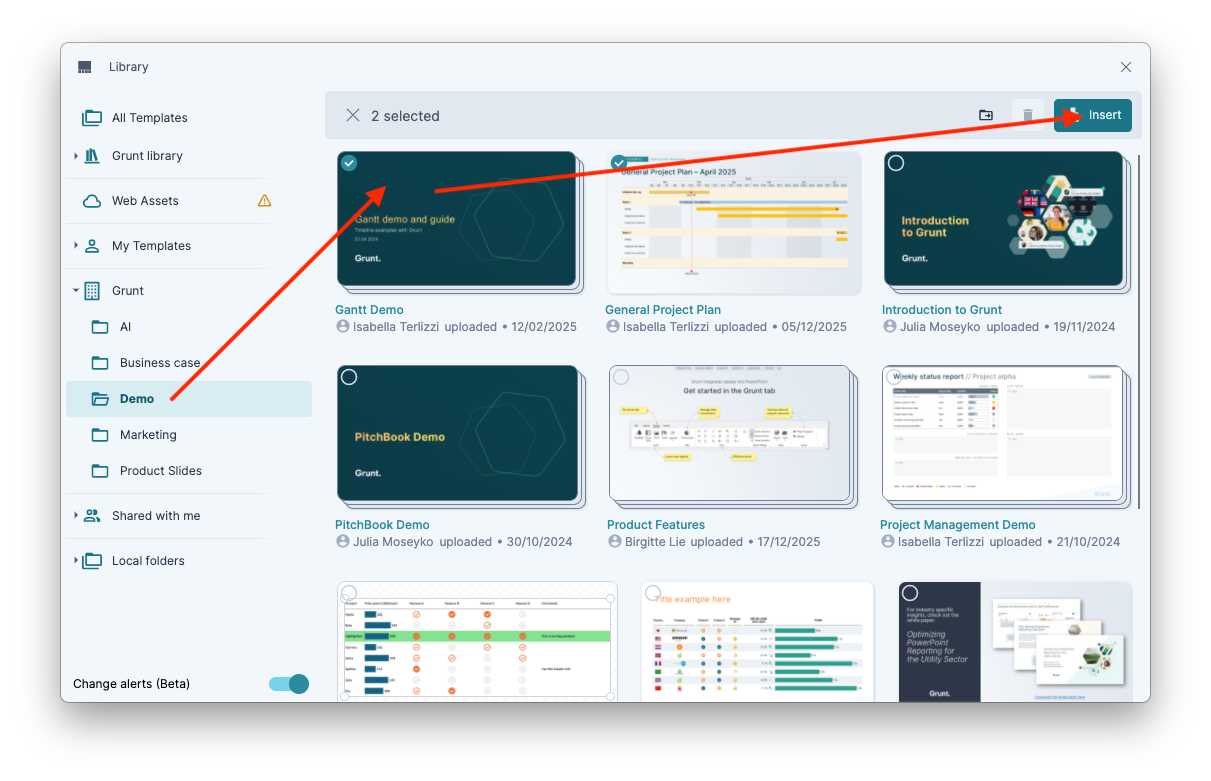
1. Open the company folder you need.
2. Select a template or slide collection. You can select several before inserting.
3. Click **Insert**.
When a template contains several slides or objects, Grunt inserts them in order after the slide you selected before opening the library.
 You can edit your inserted copy without changing the shared original.
## Save content to the library
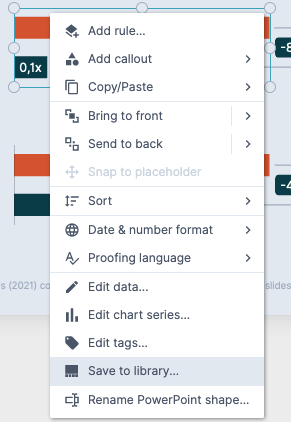
If you have editing permission, right-click a Grunt object or slide and choose **Save to library**.
You can edit your inserted copy without changing the shared original.
## Save content to the library
If you have editing permission, right-click a Grunt object or slide and choose **Save to library**.
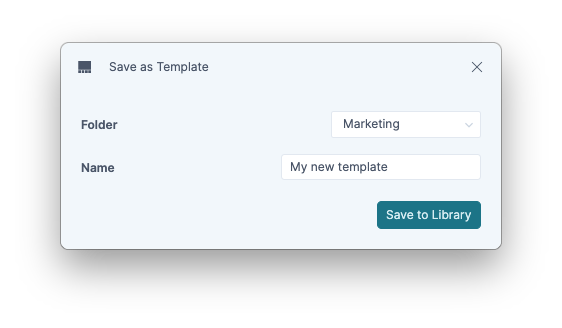
 Choose a destination folder in the company workspace, enter a name, and save.
 ## Find the right contact
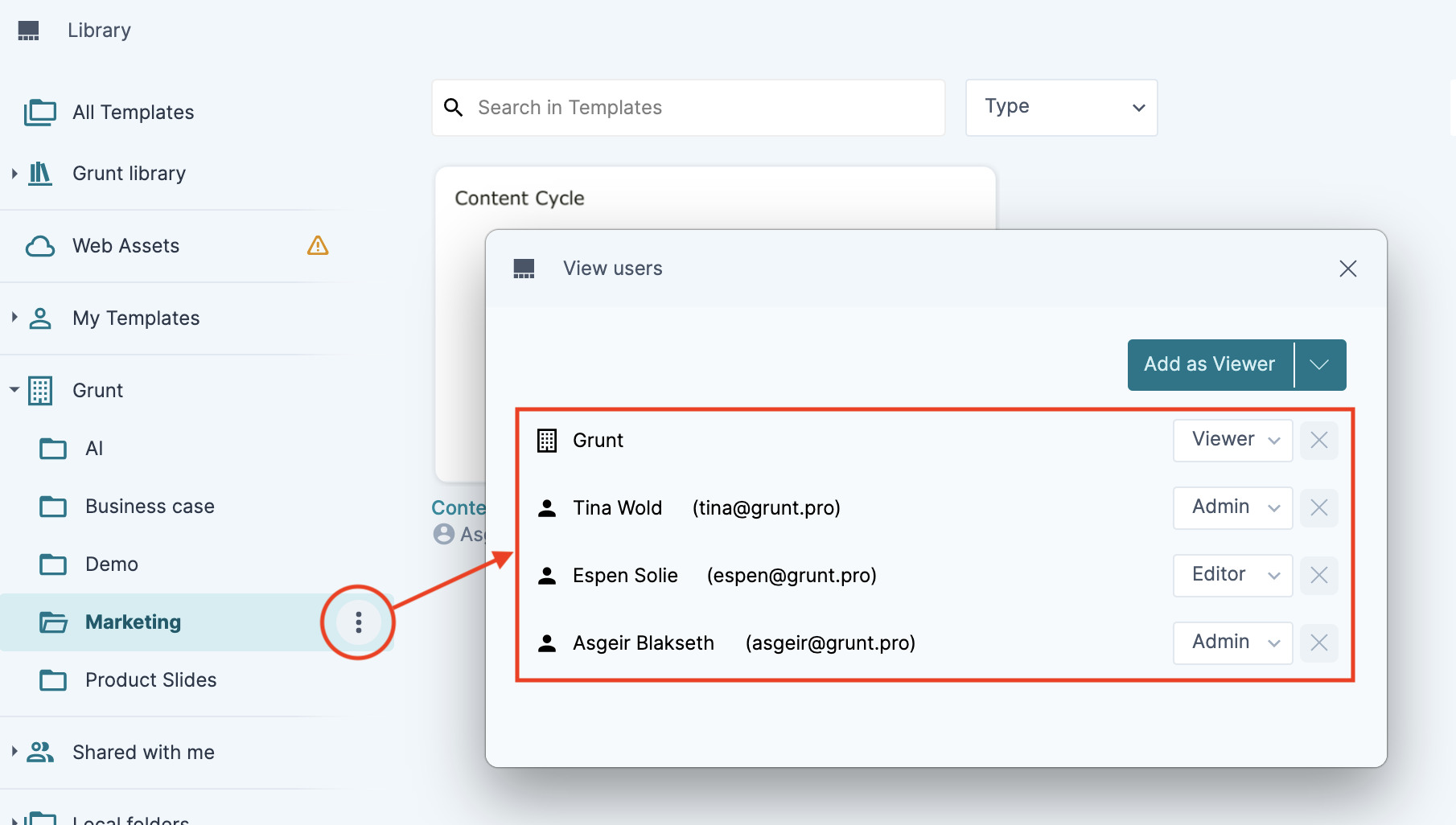
Open the **⋯** menu beside a folder and choose **View users** to see who has permission to manage its content. Contact an editor or administrator when you need a shared template added or changed.
## Find the right contact
Open the **⋯** menu beside a folder and choose **View users** to see who has permission to manage its content. Contact an editor or administrator when you need a shared template added or changed.
 ## A folder is missing
New folders can be hidden until an administrator grants access. Ask the folder administrator to check **Manage** and give your company or your account **Viewer** access. Restart PowerPoint if a permission change has not appeared yet.
For the complete permission workflow, see [Manage the Content Library](/powerpoint-add-in/user/manage-content-library).
## Search and theme tips
Search indexes slide text, with a short delay after upload. Native PowerPoint text boxes are indexed more reliably than content inside Grunt objects. Use clear template names so colleagues can find the content.
On Mac, PowerPoint may insert slides with **Keep Source Theme**. If an inserted slide has the wrong branding, right-click it and choose **Change layout** to use your current presentation's layout and theme. More guidance is in [FAQ and tips](/powerpoint-add-in/user/faq-and-tips#templates-from-the-content-library-look-wrong-on-mac).
## A folder is missing
New folders can be hidden until an administrator grants access. Ask the folder administrator to check **Manage** and give your company or your account **Viewer** access. Restart PowerPoint if a permission change has not appeared yet.
For the complete permission workflow, see [Manage the Content Library](/powerpoint-add-in/user/manage-content-library).
## Search and theme tips
Search indexes slide text, with a short delay after upload. Native PowerPoint text boxes are indexed more reliably than content inside Grunt objects. Use clear template names so colleagues can find the content.
On Mac, PowerPoint may insert slides with **Keep Source Theme**. If an inserted slide has the wrong branding, right-click it and choose **Change layout** to use your current presentation's layout and theme. More guidance is in [FAQ and tips](/powerpoint-add-in/user/faq-and-tips#templates-from-the-content-library-look-wrong-on-mac).