---
title: "Manage the Content Library"
description: "Organize company templates and set viewer, editor, and administrator access"
---
Content managers maintain the shared company workspace. Your organization needs the Content Distribution add-on, and designated content managers are assigned through the client portal.
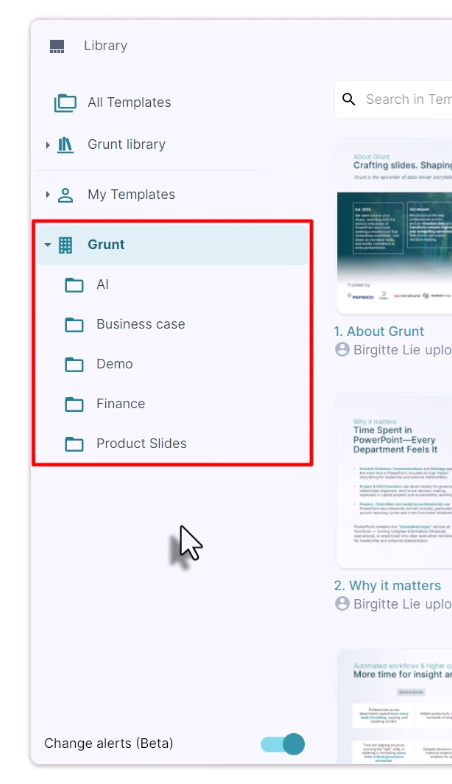
Open **Grunt** > **Library** to manage the workspace.
 ## Create and rename folders
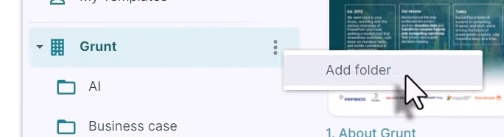
Use the company's **⋯** menu and choose **Add Folder**. To rename an existing folder, open that folder's **⋯** menu and choose **Rename**.
Choose descriptive names based on a department, use case, or content type so people can find the right material.
## Create and rename folders
Use the company's **⋯** menu and choose **Add Folder**. To rename an existing folder, open that folder's **⋯** menu and choose **Rename**.
Choose descriptive names based on a department, use case, or content type so people can find the right material.
 ## Set folder permissions
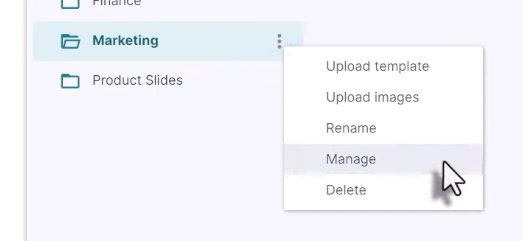
Open the folder's **⋯** menu and choose **Manage**.
## Set folder permissions
Open the folder's **⋯** menu and choose **Manage**.
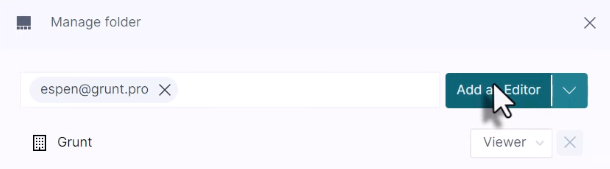
 Grant access to the company or add individual users by email. For broadly shared material, company-wide **Viewer** access lets current and new employees use the templates. Assign **Editor** or **Admin** separately to people maintaining the content.
 | Access | See folder | Insert templates | Edit or delete originals | Manage folder access |
| --- | --- | --- | --- | --- |
| **None** | No | No | No | No |
| **Viewer** | Yes | Yes | No | No |
| **Editor** | Yes | Yes | Yes | No |
| **Admin** | Yes | Yes | Yes | Yes |
A Viewer can edit their inserted copy; that does not change the shared original.
## Make a new folder visible
New company folders start hidden from other users so you can prepare content before sharing it. When the folder is ready, change the company entry from **None** to **Viewer**, or grant access to specific users.
If users still cannot see it, confirm they have access to the add-on and ask them to restart PowerPoint.
## Maintain templates
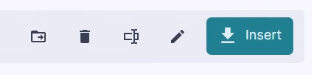
Select a template and use its available controls to edit, rename, or delete it. Check which item you selected before changing a shared original.
| Access | See folder | Insert templates | Edit or delete originals | Manage folder access |
| --- | --- | --- | --- | --- |
| **None** | No | No | No | No |
| **Viewer** | Yes | Yes | No | No |
| **Editor** | Yes | Yes | Yes | No |
| **Admin** | Yes | Yes | Yes | Yes |
A Viewer can edit their inserted copy; that does not change the shared original.
## Make a new folder visible
New company folders start hidden from other users so you can prepare content before sharing it. When the folder is ready, change the company entry from **None** to **Viewer**, or grant access to specific users.
If users still cannot see it, confirm they have access to the add-on and ask them to restart PowerPoint.
## Maintain templates
Select a template and use its available controls to edit, rename, or delete it. Check which item you selected before changing a shared original.
 Read [Content Library](/powerpoint-add-in/user/content-library) for saving and inserting content, or [Grunt Academy](/powerpoint-add-in/user/academy) for guided tutorials.