
Excel connections
Connect Grunt objects to Excel, refresh SharePoint-backed workbooks, and manage overrides
Use Excel connections when your data should keep updating after the slide is created.
For workbooks stored in SharePoint or OneDrive, Grunt can refresh selected ranges through Microsoft Graph. The connection is stored as a cloud file link, so collaborators do not need the same local sync path on their computers.
#Connect a Visual Grid to Excel
To create a linked Visual Grid:
- Open the workbook in Excel.
- Copy the range you want to use.
- Go to the target slide in PowerPoint.
- Paste the data through Grunt.
- Size the Visual Grid on the slide.
Grunt links the grid back to the workbook and keeps the workbook reference with the object.
If the workbook is stored in SharePoint or OneDrive and Grunt offers Use cloud file, choose it. This stores the SharePoint-backed location instead of the local synced path.
#Connect any chart to Excel
For chart objects, you can either:
- Insert the chart while the Excel range is already on the clipboard
- Replace the chart's source range later from Excel Connection
This is covered in more detail on Charts.
#Use the Data Editor
The Data Editor is the main place to inspect or change several values at once.
You can open it by:
- Clicking the pencil icon in the edge menu
- Pressing
Ctrl+Shift+E - Right-clicking a Grunt object and choosing Edit data
The editor supports:
- Direct cell edits
- Multi-line edits through the formula bar
- Hidden columns or rows that still drive formatting
- Override visibility for cells that no longer match the workbook
#Understand overrides
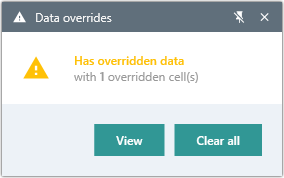
When you change linked values directly in PowerPoint, you do not update Excel. You create an override instead.
To return to your source data:
- Overridden cells are marked in the edge menu or data editor
- You can clear the override to reveal the original Excel value again
- Clearing overrides is safer than retyping the workbook value manually
Right-click an overridden cell in the Data Editor and choose Reset cells to original value. Use Clear all in the override warning to reset every overridden cell.
#Use Greedy rows and columns for changing ranges
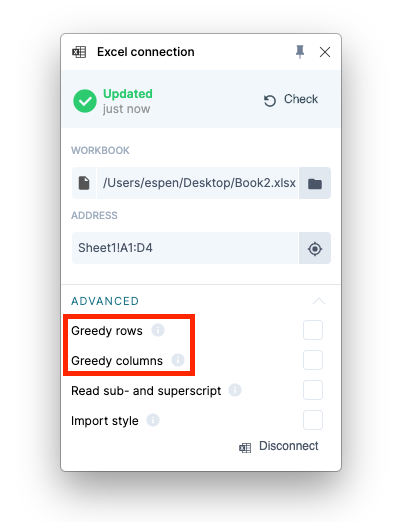
Greedy rows and columns tell Grunt to keep reading data until the first empty row or column.
Use this when the dataset grows over time. Open Excel Connection, expand Advanced, and enable the row or column setting you need.
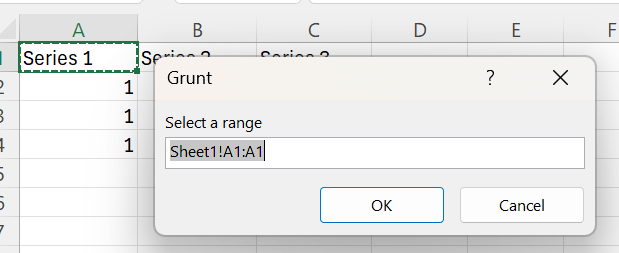
For a range that can both expand and contract:
- If you use only the top-left workbook cell as the starting range, Grunt can expand and contract the detected dataset dynamically.
#Refresh SharePoint and OneDrive workbooks
When a connection is stored as a cloud file, Grunt reads the selected workbook range from SharePoint or OneDrive through Microsoft Graph.
This means:
- The workbook does not have to be opened in Excel just to refresh values.
- Each collaborator refreshes with their own Microsoft account and workbook permissions.
- Grunt reads the selected range, number formats, and formulas needed for the object.
- The workbook data is used locally by the add-in and is not stored in Grunt cloud services.
You may be asked to sign in with Microsoft the first time Grunt needs Graph access. Your organization may also need to approve the requested Microsoft Graph permission.
#Avoid workbook-not-found issues
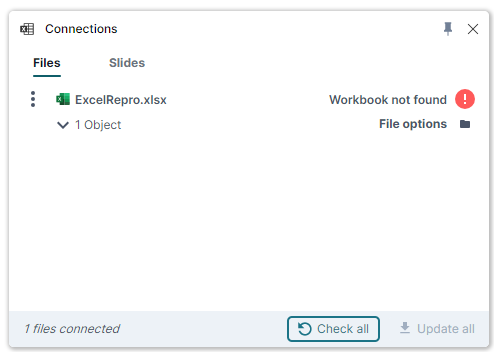
Broken Excel links usually mean the workbook moved, its path is unavailable, or you lack permission to read it.
To reduce failures:
- Store the workbook in a shared location all collaborators can access
- Prefer SharePoint or OneDrive locations that Grunt can store as cloud files
- Choose Use cloud file if Grunt warns that a cloud file is stored as a local file
- Avoid OneDrive or SharePoint shortcuts that point to a location Grunt cannot resolve
- Make sure every collaborator can open the workbook directly in Excel
#When a local file path is still used
Some connection features still need Excel desktop access. This includes some advanced range expansion and style-reading cases.
If Grunt falls back to Excel desktop, make sure the workbook can still be opened from the machine you are using. For SharePoint and OneDrive files, keep the library synced locally as a fallback.
#Data limits for Excel connections
Grunt enforces these limits per connection:
- Maximum rows: 8,192
- Maximum cells: 32,768
If your Excel range exceeds these limits, you will see a "Range has too many rows" error. This commonly happens when connecting to large pivot tables backed by extensive datasets. Reduce the connected range or summarize the data before connecting.
#Automate updates with VBA
On Windows, you can update a Grunt chart or table from an Excel macro. The macro passes an Excel range to the PowerPoint add-in and targets the Grunt object by its PowerPoint shape name.
See Automate Excel updates with VBA for setup steps, sample code, and error handling.
#OneDrive-synced files may not auto-detect changes
When working with files synced through OneDrive as local paths, Grunt may not always detect changes automatically after you save in Excel. This depends on how OneDrive handles file synchronization on your machine.
If you do not see the update notification:
- Click Update manually in the Grunt ribbon or edge menu to check for changes.
- If Grunt shows Use cloud file, switch the connection to the cloud file.
- Verify the file is fully synced in OneDrive if the connection still uses a local fallback path.
#File permissions and data refresh
For SharePoint and OneDrive workbooks, Grunt uses your Microsoft account permissions. If you do not have access to the linked Excel file, Grunt cannot read it or notify you of changes, even if someone else with access has updated the file.
For local fallback reads, Grunt uses the file access permissions available on your machine.
Make sure every collaborator who needs update notifications has direct access to the workbook.
#Continue
If you want the overview workflow, continue to Work with data. If you need path and rendering fixes, go to Troubleshooting.