
Gauges and value source
Show progress as donuts or bars and drive a rule from another row or column
Use gauges to turn cell values into compact progress visuals. Use Value Source when the value driving a visual lives somewhere other than the display cell.
#Donut (gauge) rule
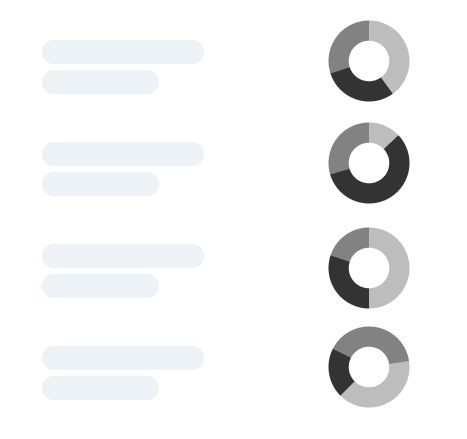
Select the cells containing your values and add Donut (gauge). Each target cell displays a gauge based on its value.
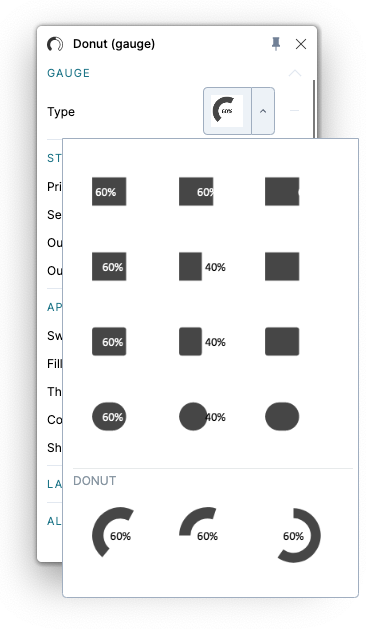
- Type chooses the visual and label placement. This menu also lets you switch to pie or bar variants.
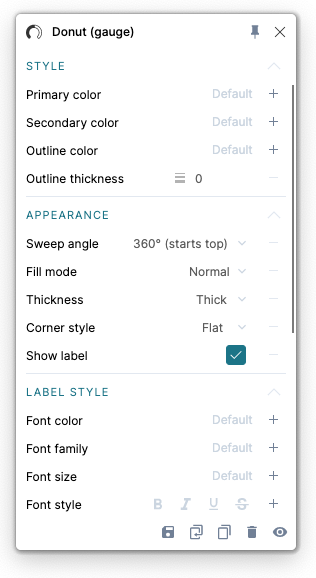
- Style controls ring colors and outline thickness.
- Appearance controls the starting position, circle appearance, and label visibility.
- Label style, Alignment, Size, and Margin control presentation.
Donut gauge types and settings
#Bar (gauge) rule
Use Bar (gauge) for a linear progress display, such as completion, capacity, or an in-cell data bar.
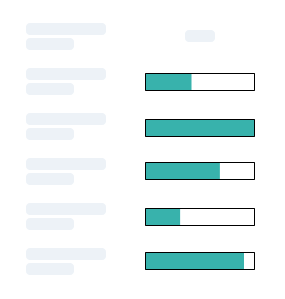
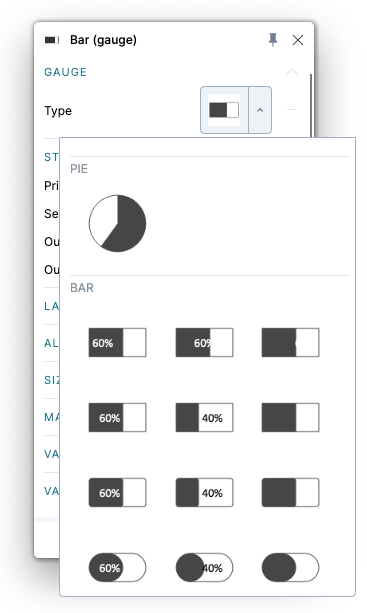
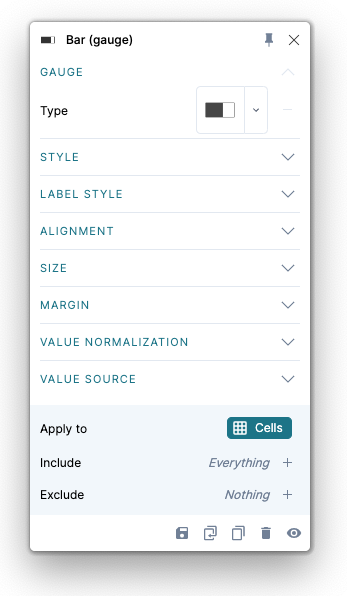
Choose the visual under Type. Set the bar colors and outline under Style, and use Label style for the text. Alignment, size, and margins determine how the bar fits its cell.
Bar gauge types and settings
#Set the normalization scale
Value Normalization sets the lowest and highest values used to calculate the gauge's fill. Use the same bounds across rows when the gauges should be comparable.
For example, if the underlying values range from 0 to 100, use those bounds so 50 appears half full. If your percentages are stored as fractions, use 0 and 1 instead.
#Value Source in Rules
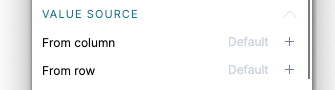
A data-driven rule normally uses the value in the cell where it applies. Value Source can read from another row or column instead, including hidden helper dimensions.
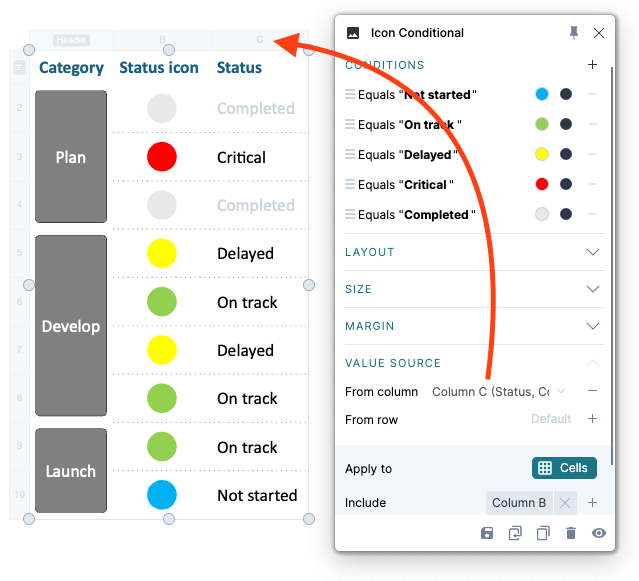
For example, show status icons in column B while keeping status descriptions in column C:
- Add Icon conditional to column B.
- Define conditions for your status values.
- Open Value Source and set From column to column C.
- Change a status in column C and check that its icon updates in column B.
This pattern also lets hidden data drive visible formatting or one cell's condition affect a larger target area. For a chart example, see Stacked bars in a Visual Grid.