
Themes and defaults
Use your company colors and fonts, fit placeholders, and set a default theme
Grunt uses your presentation's theme to make inserted visuals fit the company's design. Set up the theme first to reduce repeated formatting.
#Theme colors and fonts
Charts and other graphics inserted from the Grunt library use the theme's accent colors.
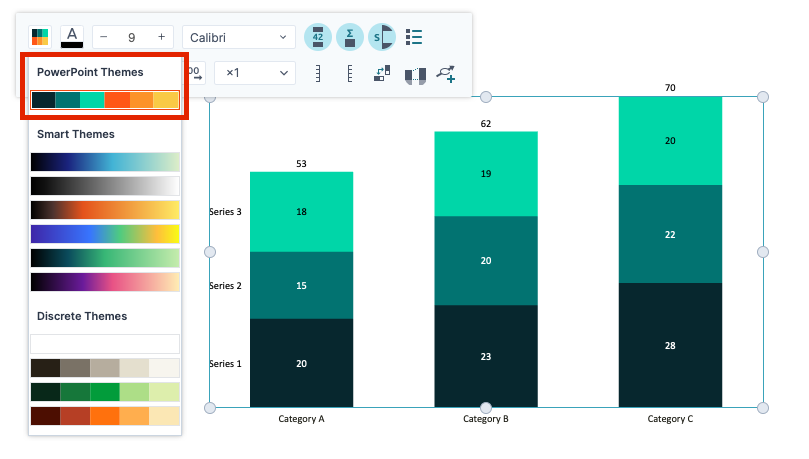
Grunt uses the theme's Body font for inserted content. Text colors adjust for readability against light and dark backgrounds, rather than simply copying theme text colors.
For theme-wide changes, edit the Slide Master.
#Snap to a placeholder
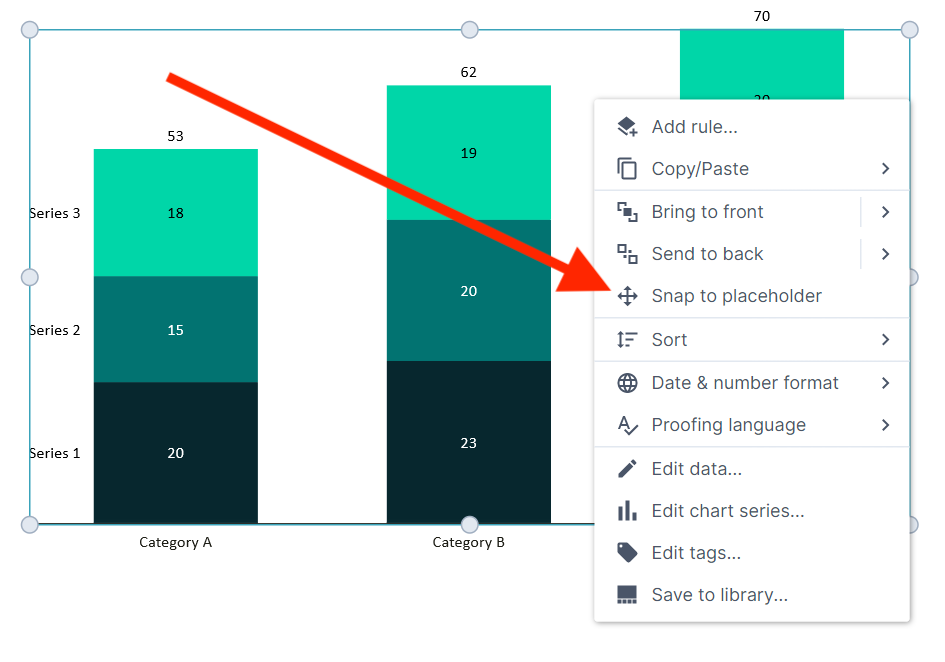
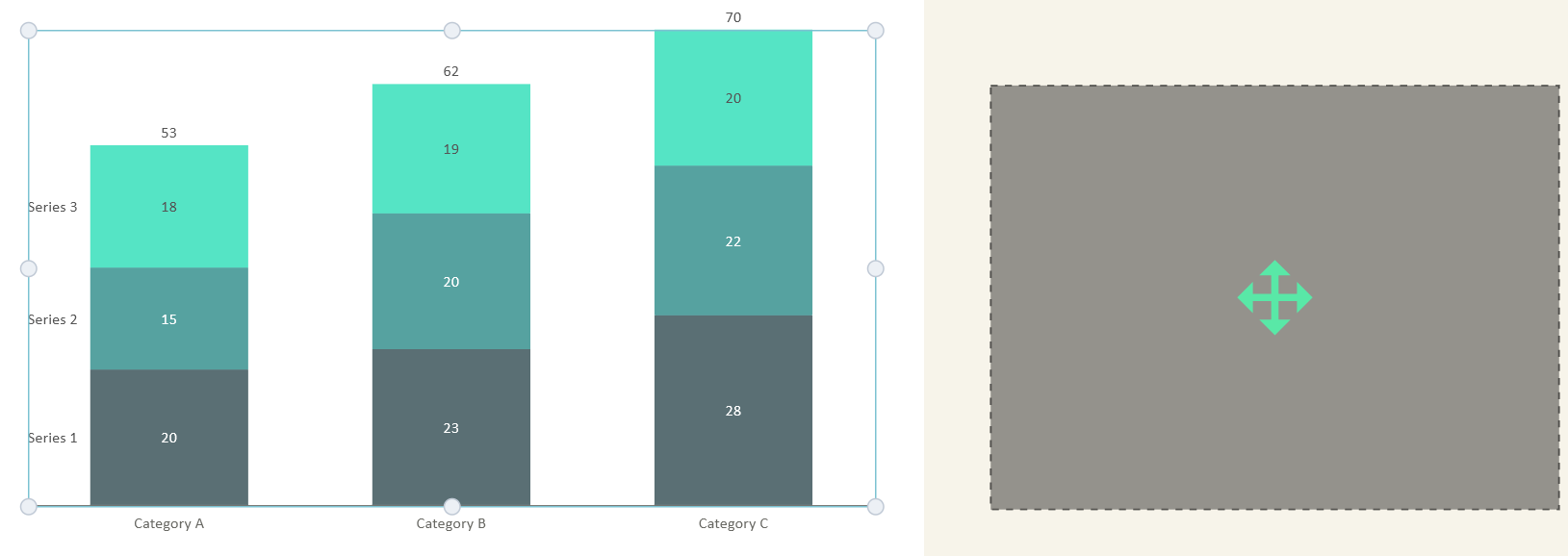
Right-click a Grunt object and choose Snap to placeholder. Then click the target placeholder. The object moves and resizes to fit that area of the layout.
#Set the default theme
- Open your company theme or template in PowerPoint.
- Open Design, expand the theme gallery, and choose Save Current Theme.
- Give it a recognizable name.
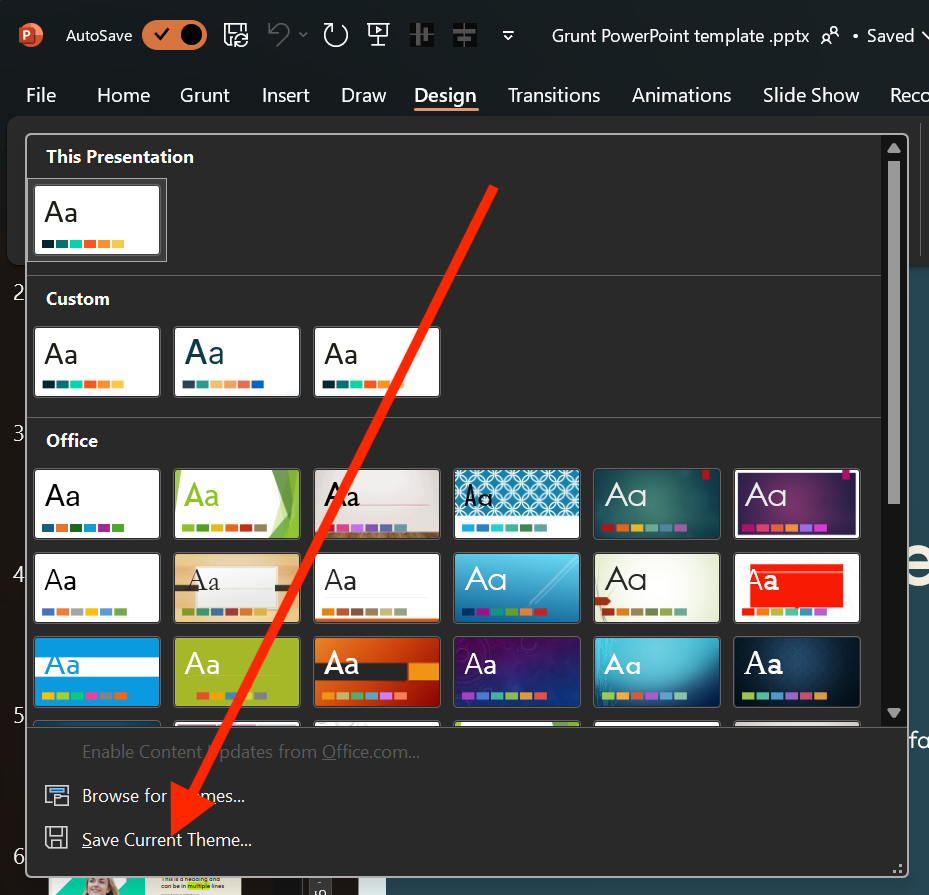
- Open the theme gallery again and find the saved theme under Custom.
- Right-click it and choose Set as Default Theme.
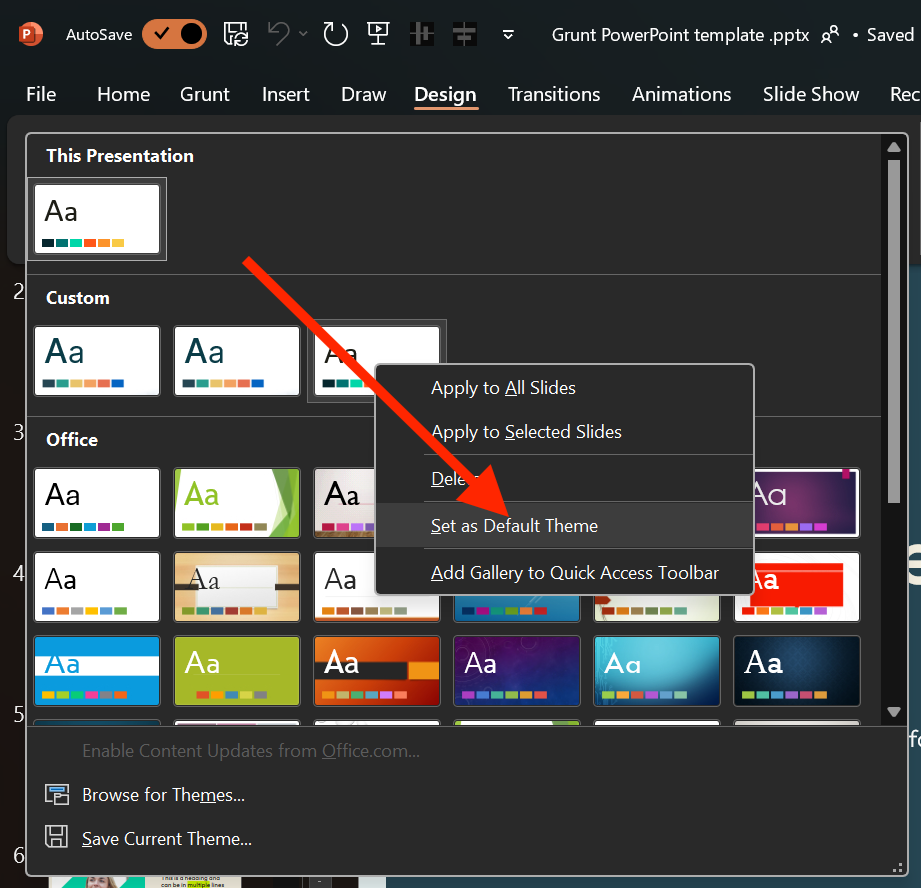
New presentations now start with that theme.
#Font caveat
Grunt may not be able to access fonts embedded in a PowerPoint file through the Office API. Install the required font locally or select an available font. See FAQ and tips.
#Additional brand colors
PowerPoint's custom color rows are separate from the standard theme accent colors and do not automatically appear in Grunt's color picker. Contact your Grunt Customer Success Manager if your organization needs additional configured colors in Grunt.