
Work with data
Create visuals in PowerPoint, connect them to Excel, and manage updates safely
Grunt lets you work with data in two ways:
- Keep the data inside PowerPoint.
- Link the data to an Excel workbook and refresh it as the workbook changes.
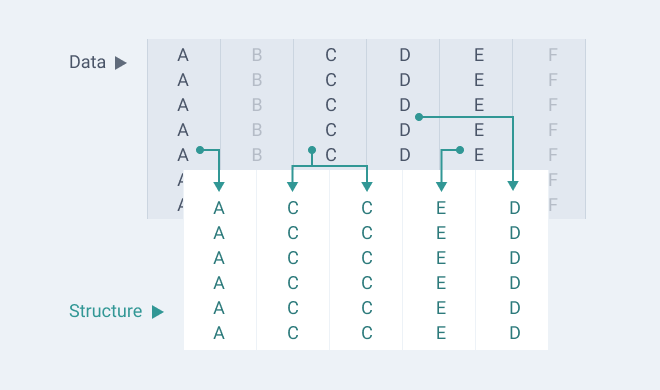
The structure of a Grunt visual is separate from its data. That means you can change layout and formatting without changing the underlying data source.
You can hide helper columns, rearrange the visible columns, or display the same data in more than one place. The underlying data stays available to your rules.
#Link a Visual Grid to Excel
To create a new Visual Grid from Excel data:
- Open the Excel workbook.
- Copy the range you want to use.
- In PowerPoint, go to the target slide.
- Paste the data.
- Click and drag to size the Visual Grid on the slide.
Grunt creates the Visual Grid with the same initial row and column count as the copied range and links it back to the workbook.
If the workbook is stored in SharePoint or OneDrive and Grunt offers Use cloud file, choose it. The connection can then refresh through SharePoint instead of depending on one person's local sync path.
#Connect a chart to Excel
You can connect charts in two common ways:
- Copy a range in Excel.
- In PowerPoint, insert the chart type you want from the Grunt ribbon.
- Let Grunt use the clipboard data as the source.
You can also replace a chart's source later from the Excel Connection control and select a new range in Excel.
#Update linked data
For linked workbooks, update the data in Excel first. When you save the workbook, Grunt notifies you that fresh data is available. You can then choose when to update the slide.
This is the recommended workflow because edits made directly in PowerPoint do not write back to Excel. Update notifications do not appear in presentation mode or printed output.
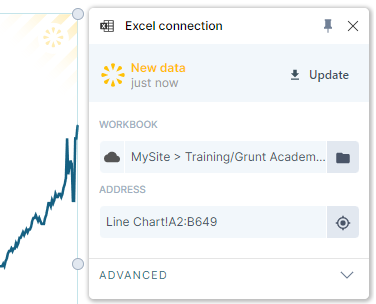
For SharePoint or OneDrive workbooks stored as cloud files, Grunt can read the selected range through Microsoft Graph using your Microsoft account permissions. If that is not available for a specific connection, Grunt falls back to the Excel desktop app.
#Edit data in PowerPoint
Use the data editor when you need to inspect or change multiple values at once.
You can open it by:
- Clicking the pencil icon on the right edge of the PowerPoint window
- Right-clicking a Grunt object and choosing Edit data
Inside the editor:
- You can type directly into cells for single-line edits.
- Use the formula bar for multi-line text.
- Use Excel-style navigation such as arrow keys,
Tab,Shift+Tab,Ctrl+A,Ctrl+Space, andShift+Space. - Use
Ctrl+Dto fill down andCtrl+Rto fill right across a selected range.
#Understand overrides and mixed data
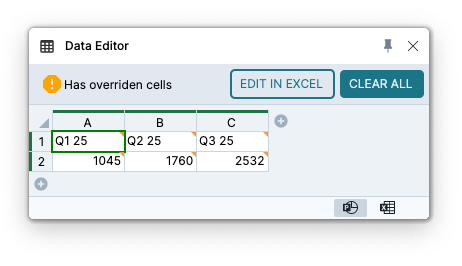
When a visual is linked to Excel, Grunt keeps the original workbook data and applies any edits you make in PowerPoint as overrides on top of it.
- Overridden cells do not change the workbook.
- Overridden cells are marked in the data editor.
- You can clear overrides later to reveal the original Excel values again.
You can also mix data sources by inserting extra rows or columns in PowerPoint. Those new rows or columns are stored in the presentation, while the original linked rows or columns keep coming from Excel.
#Collaborate on Excel-linked decks
To avoid workbook-not-found issues when several people work on the same presentation:
- Store the workbook in a shared location that every collaborator can access.
- Prefer SharePoint or OneDrive locations that Grunt can store as cloud files.
- Use Use cloud file if Grunt warns that a cloud workbook is stored as a local file.
- Do not rely on OneDrive or SharePoint shortcuts that point to a location Grunt cannot resolve.
- Confirm that every collaborator can open the workbook directly in Excel.
The latest fetched data is saved in the presentation, so a colleague with Grunt can edit the design and embedded data even when the workbook is unavailable. Refreshing from Excel still requires access to the source workbook.
#Continue
Move to Export and sharing when your deck is ready to distribute.