
Export and sharing
Choose the right export mode for compatibility, editing, and email sharing
Use Export to save a presentation or PDF for sharing. Send uses an Outlook handoff; check the current limitation below before using it.
#Export options
To export a presentation:
- Optionally select the slides you want to include.
- Click Export in the Grunt ribbon.
- Choose the file name and save location.
- Pick the output format.
- Choose the scope to export.
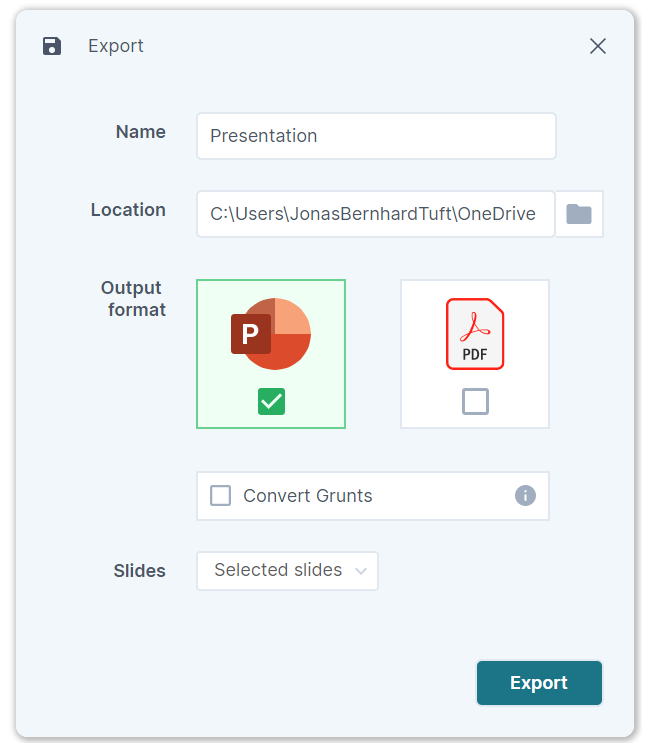
Grunt supports these output formats:
.pptxwith live Grunt objects.pptxwith Grunt objects converted to native PowerPoint shapes.pdf
#When to use each format
| Goal | Recommended option |
|---|---|
| Keep Grunt editing available | .pptx with live Grunt objects |
| Let recipients edit without Grunt | .pptx with converted objects |
| Share a final fixed deliverable | .pdf |
Recipients without Grunt can view a presentation containing live Grunt objects, but they need Grunt to edit those objects. Convert Grunts creates native PowerPoint shapes for editing without the add-in. Conversion loses the original rule-based editing, so keep a copy of the source presentation.
#Export scope
You can export:
- The current slide
- Selected slides
- The full presentation
- A custom set of pages, sections, or ranges
#Send by email
To send from PowerPoint:
- Optionally select the slides you want to include.
- Click Send in the Grunt ribbon.
- Choose the attachment name.
- Choose the same output format options as Export.
- Choose the slide scope.
- When the handoff is available, click Send to open a new Outlook draft with the generated file attached.
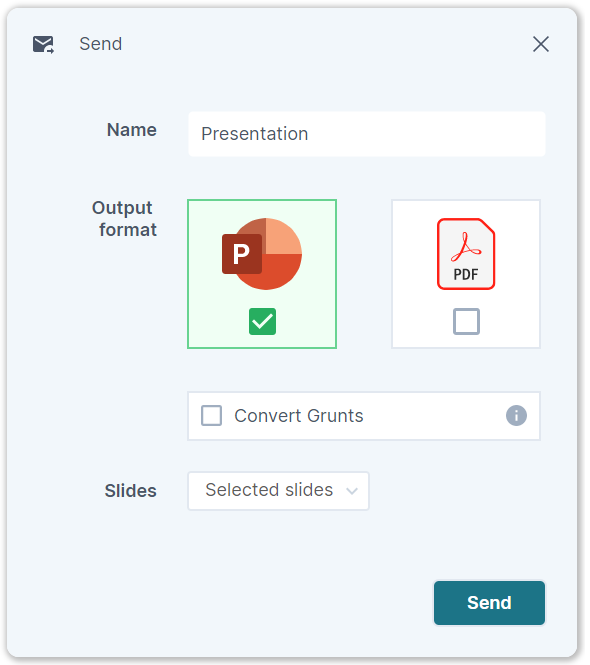
If Outlook handoff is blocked in your environment, export first and attach the file manually.
If Send was previously working but stopped, see Outlook send issues for a workaround related to Outlook (new) vs. Outlook (classic).