
Charts
Connect charts to Excel, keep them updated, and handle version-specific chart behavior
Grunt supports chart workflows both through the chart tools in the ribbon and through rules applied inside a Visual Grid.
#Connect a chart to Excel
You can connect a chart while inserting it or replace its source later.
#Method 1: Use clipboard data
- Copy the source range in Excel.
- In PowerPoint, choose the chart type from the Grunt ribbon.
- Let Grunt use the copied range as the chart source.
Grunt stores the cell reference and prompts you to update when the workbook changes later.
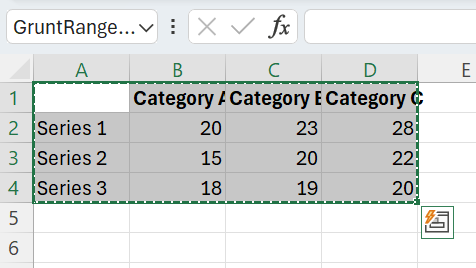
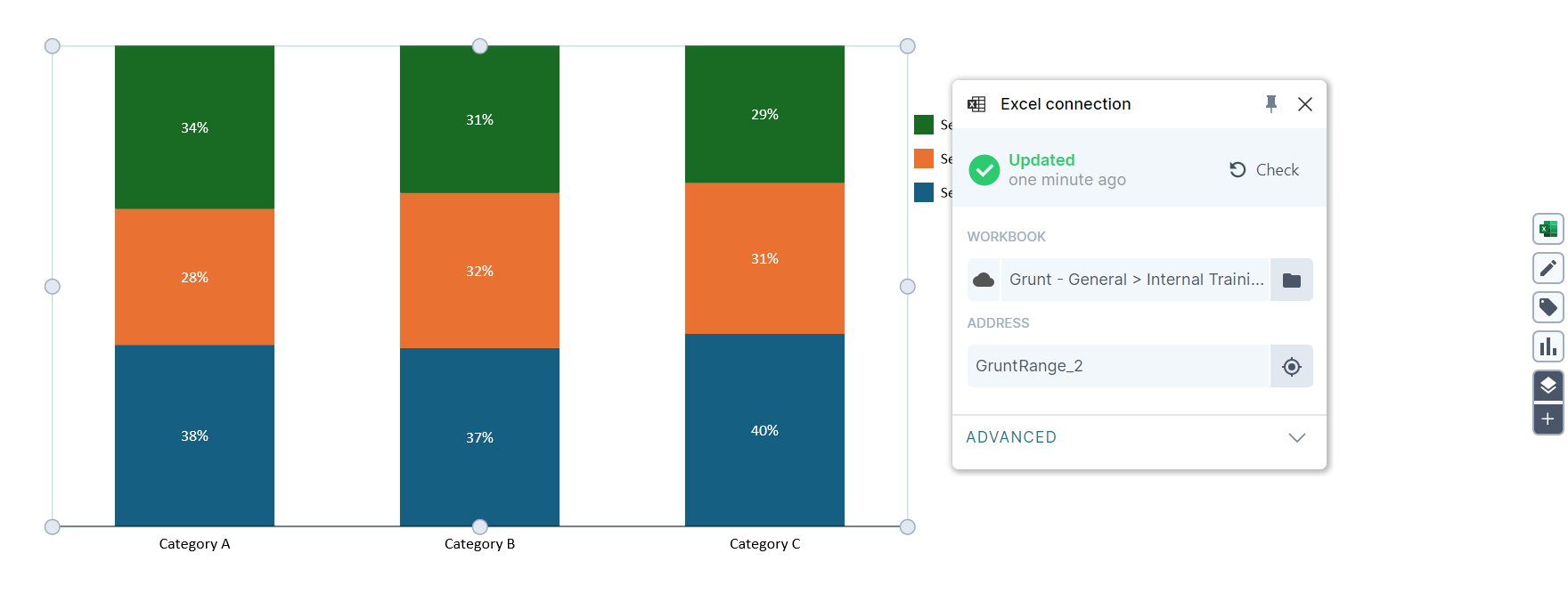
For workbooks stored in SharePoint or OneDrive, use the cloud file connection when Grunt offers it. This lets Grunt refresh the selected range through SharePoint instead of depending on a local synced path.
#Method 2: Replace chart data
- Select the chart in PowerPoint.
- Open Excel Connection.
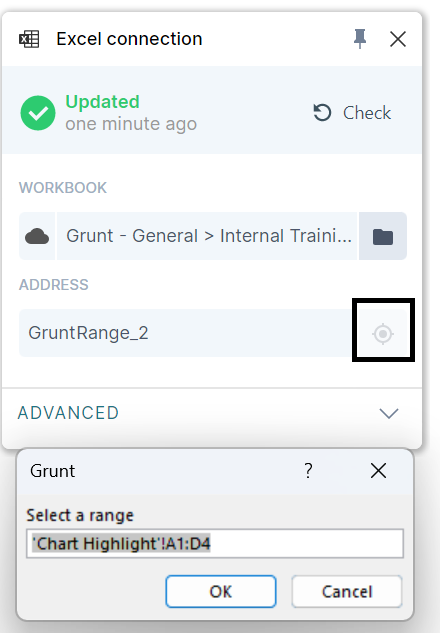
- Use the range picker to select a new Excel range.
- Confirm and update the chart.
#Update linked charts
When the workbook changes:
- Save the workbook in Excel.
- Return to PowerPoint.
- Use the Grunt update prompt or Update control to refresh the chart.
If your dataset keeps expanding, consider using Greedy rows or columns in the Excel connection advanced settings.
SharePoint-backed connections can refresh regular ranges and named ranges through Microsoft Graph. If a chart uses Greedy rows or columns, Grunt may use the Excel desktop fallback during refresh.
#When a chart turns into an image
If a chart opens as an image instead of a live Grunt object, the most common cause is a version mismatch.
That usually means:
- Someone updated or created the chart in a newer Grunt version
- Your installation is older and cannot edit that chart format yet
The recommended fix is to update Grunt from app.grunt.pro/download and reopen the presentation.
#Upgrade classic waterfall charts
In Grunt 2025.2+, classic waterfall charts can be upgraded to Advanced Waterfall from the edge menu.
Recommended workflow:
- Select the existing waterfall chart.
- Use the upgrade button in the edge menu.
- Upgrade one chart first before upgrading all charts in the deck.
- Review connectors, totals, and excluded series after the upgrade.
Important migration note:
- Old force-to-baseline behavior is replaced by movable connectors.
- Old exclude-from-sum behavior is also handled through connector movement.
- Some border and connector dash styling can change during upgrade.
#Waterfall chart: floating sums show absolute values
Floating sums in waterfall charts display the absolute (total) value, not a signed relative value. For example, a floating sum will show 25 rather than -25, even when the waterfall segment represents a negative change.
This is by design and matches standard waterfall chart conventions. Showing a negative sign on the floating sum would also incorrectly trigger negative-number color formatting.
#Chart axis and label tips
Tick mark spacing is determined automatically by Grunt's layout algorithm. It cannot be set manually per chart or per customer. If the default spacing is consistently wrong for your data, contact support so the algorithm can be improved.
Diagonal or vertical label orientation is not currently supported. Workarounds for long category labels:
- Switch to a horizontal bar chart so labels have more space
- Increase spacing between clusters
- Move unit indicators (such as
%) to the axis title instead of repeating them on each label
Hiding axis labels without removing in-chart labels: If you want category names to appear as labels inside the chart but not on the axis, set the axis label font color to match the slide background color. This visually hides the axis labels without affecting the in-chart category labels.
#Donut chart: showing actual values
To display actual numeric values instead of percentages in a donut chart:
- Click directly on the labels inside the chart (not the main chart floater).
- Change the label calculation setting from the label-level menu.
The main chart floater may not expose this option when the chart is set to show percentages by default.
#Waterfalls and annotations
- Follow Waterfall charts for totals, stacked series, movable connectors, and the illustrated classic-chart upgrade.
- Use Chart annotations for CAGR, value jumps, value lines, and level differences.
#Use a Visual Grid when you need more layout control
If you need tighter control over labels, surrounding text, or mixed content on the same slide, build the chart inside a Visual Grid instead of using a stand-alone chart tool. Follow Stacked bars in a Visual Grid for an illustrated example.