
Smart Selection
Use Smart Selection to tidy, space, and resize multiple objects faster
Smart Selection enhances native PowerPoint multi-select behavior with layout controls directly on the slide.
#Turn Smart Selection on
Enable Smart Selection from the Grunt ribbon before using the features on this page.

When it is active:
- Pink markers show the current reference object
- Pink handles appear between or around selected objects
- Tidy-up previews appear when you hover supported controls
#Use Tidy Up
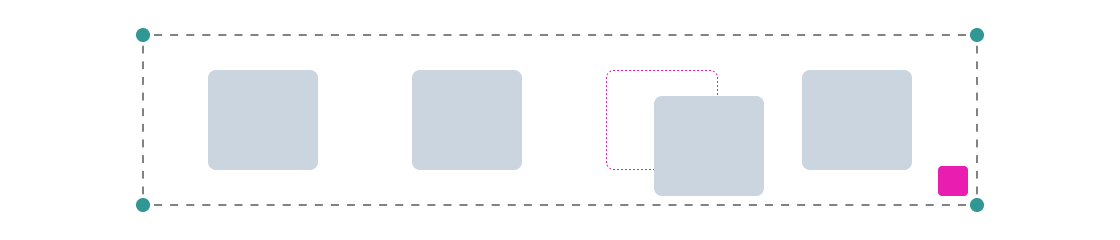
Use Tidy Up when objects should line up as a cleaner group.
Tidy Up adjusts spacing according to the selection:
- Grid-like selections are adjusted in both horizontal and vertical directions
- Depending on the start position, spacing can become equal or remain intentionally distinct
Hover the pink Tidy Up button at the bottom-right of the selection to preview the result, then click to apply it.
#Use Smart Spacing
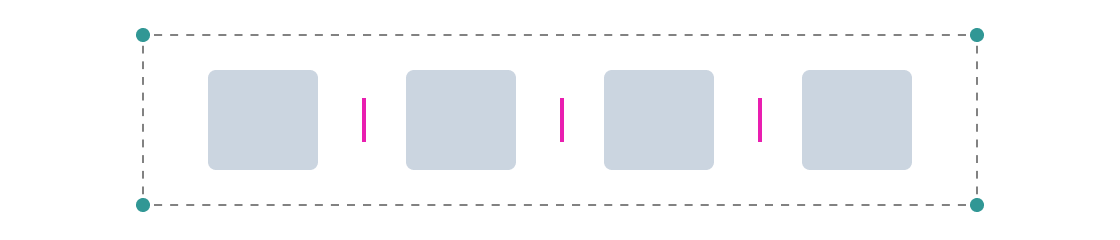
Smart Spacing lets you drag the distance between objects instead of calculating it manually.
- Select the objects.
- Drag the pink handle that appears between them.
- Release the mouse when the spacing looks right.
While dragging:
- Hover a handle to see the spacing in pixels
- Hold
Ctrlwhile dragging to space objects symmetrically from the center
#Use Smart Resizing
Smart Resizing keeps spacing relationships while you resize multiple objects together.
- Select the objects.
- Drag one side or corner.
- Release to apply the resize.
Modifier keys:
- Hold
Ctrlto resize symmetrically from the center - Hold
Shiftto preserve aspect ratio
#Temporarily turn it off
If Smart Selection gets in the way for a specific action:
- Press
Escto disable it for the current selection only - Toggle the ribbon control off to disable it globally
#Compatibility with ThinkCell
Smart Selection does not work when ThinkCell is installed and active. ThinkCell overrides PowerPoint's selection mechanism, which Grunt's Smart Selection depends on.
If you need Smart Selection, disable ThinkCell temporarily from the COM Add-ins menu.
For the wider set of workflow tools, continue to Tools and shortcuts.