
Quick start
Create your first Visual Grid, enter data, and add formatting rules
Grunt separates your data from its design. Enter text, numbers, or dates, then apply rules to turn them into tables, charts, icons, and other visuals. When the data changes, those rules keep the formatting consistent.
#Create a Visual Grid
- Open the Grunt tab in PowerPoint and choose Visual Grid.
- Select an initial number of rows and columns. You can change these later.
- Choose a plain grid or one of the available styles.
- Draw the grid on the slide and adjust its size.
To fit an empty content placeholder, use the Grunt insertion icon inside the placeholder. You can also right-click an existing Grunt object and choose Snap to placeholder.

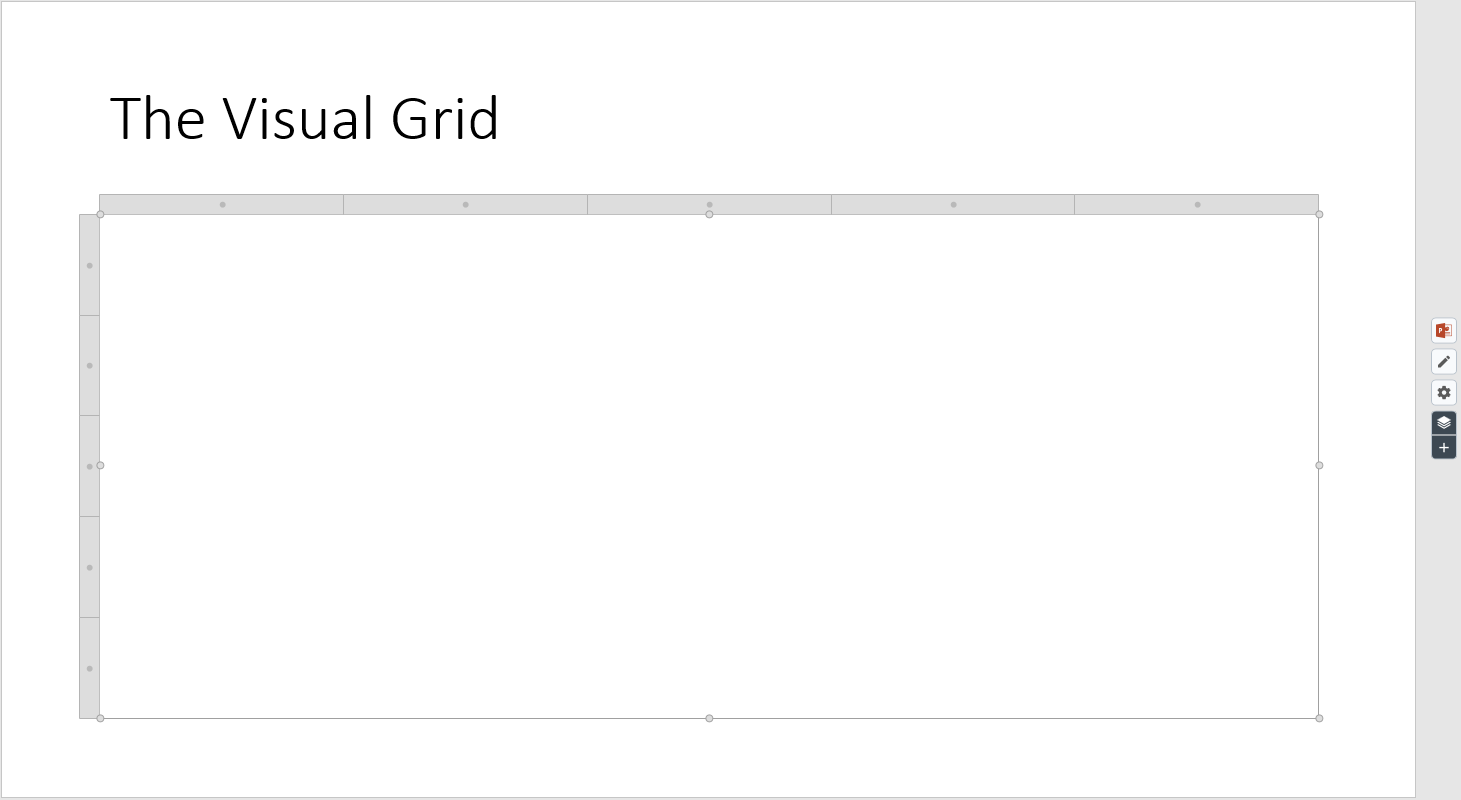
Your new grid starts with empty cells. Selecting it reveals the edge menu on the right of the PowerPoint window.
#Enter your data
- Select the grid and click the pencil icon in the edge menu to open the Data Editor. You can also press
Ctrl+Shift+E. - Enter a few labels and values.
- Press
EnterorTabto commit each edit and update the slide.
Use the formula bar for multi-line text or formulas. For a single quick edit, select a cell in the grid and type directly.
#Add a formatting rule
- Select the cells, rows, or columns you want to format.
- Press
Ctrl+Enter, right-click and choose Add rule, or click + beneath the rule stack. - Search for a rule, such as Fill or Font, and double-click it.
- Click + beside the property you want to control, then choose its value.
Rules start with many properties in their Default state. A default property leaves the current formatting alone. Activate only the properties you need.
Rules apply from the bottom of the stack upward. If two rules change the same property on the same target, the higher rule wins. Read Rules for targeting and precedence.
#Start with Excel for changing data
If you already have data in Excel, copy the range there and paste it into PowerPoint through Grunt. The resulting Visual Grid keeps a connection to the workbook.
For SharePoint or OneDrive workbooks, choose Use cloud file when offered so collaborators can refresh the link without sharing a local sync path. Continue to Work with data for the illustrated workflow.
#Make the next slide faster
- Set themes and defaults so new visuals use your company colors and fonts.
- Use Smart Selection to align and space objects.
- Reuse slides and objects from the Content Library.
- Open Grunt Academy for video tutorials and courses.