
Visual Grids
Build flexible layouts with sizing modes, row types, tags, and hidden helper data
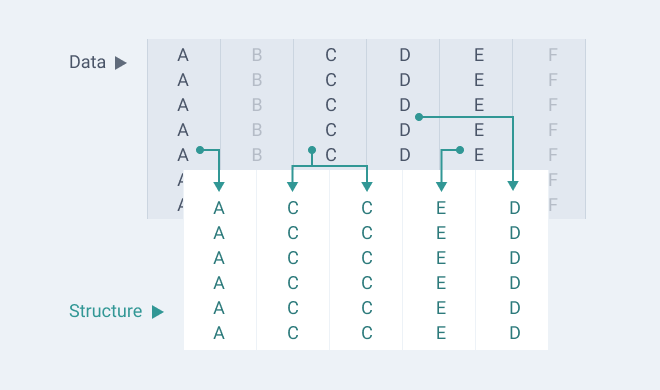
A Visual Grid combines a data table, a visible row-and-column structure, and formatting rules. Use it for tables, charts, or mixed layouts containing text, icons, shapes, and images.
#Choose a data mode
Keep data embedded in PowerPoint for content you maintain on the slide, or link it to Excel for recurring updates. Both modes support the same layout and rule system. You can also add PowerPoint-only comment rows or columns to an Excel-linked grid.
The visible structure is separate from the data. You can hide helper columns, reorder display columns, or display the same underlying data column more than once without duplicating its values.
Start with Quick start or Work with data.
#Use sizing modes on rows and columns
Select a row or column and choose a sizing mode according to how the layout should react to changes.
| Mode | Use it when | Behavior |
|---|---|---|
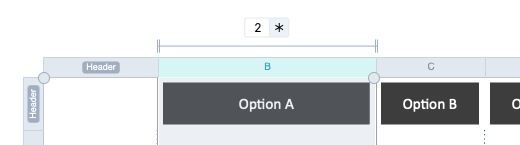
| Relative | The layout should share available space | Uses a factor relative to other rows or columns. 2 takes twice the space of 1. |
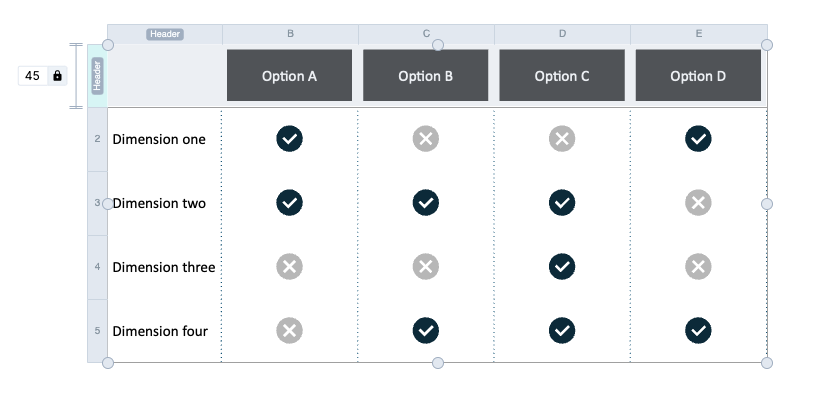
| Fixed | A dimension must stay a specific size | Keeps its size when content, grid size, or the number of rows and columns changes. |
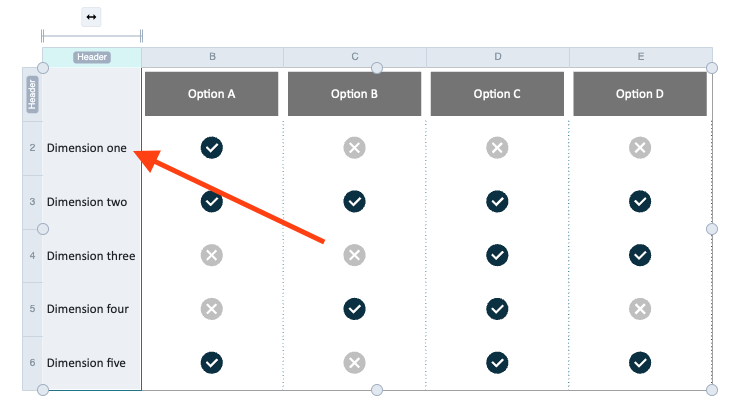
| Autofit | Content length should determine size | Fits the content without a fixed numeric value. |
#Relative sizing
Relative is the default, with a factor of 1. If one column has factor 2, it remains twice the size of factor-1 columns as you add more columns or resize the grid.
#Fixed sizing
Use a fixed size for a header, icon column, or other dimension that should keep its size when the rest of the grid changes.
#Autofit sizing
Autofit adapts to the content. It is useful when labels or descriptions vary in length.
#Use row and column types
Every row and column starts as Content. Right-click a row or column header and choose Set type to assign Header, Sub-header, or Footer.
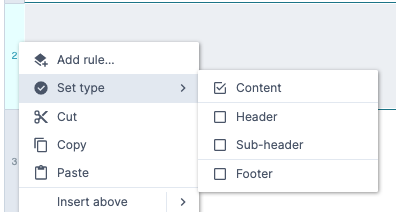
Assign types before adding rules so Grunt can create cleaner targets automatically.
#Keep rules working when you add rows
A rule targeting row IDs 2–5 affects only those rows. A rule targeting Content rows also includes new content rows you insert later.
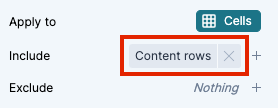
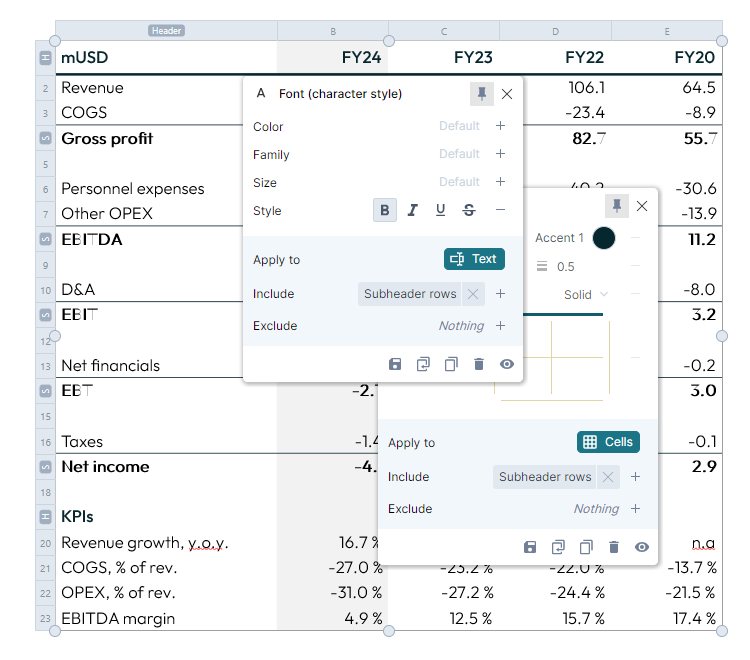
For subtotals, assign Sub-header to the relevant rows and target that type in your Font and Border rules. You can then move or add subtotal rows without editing each rule's target separately.
#Keep totals in place when sorting
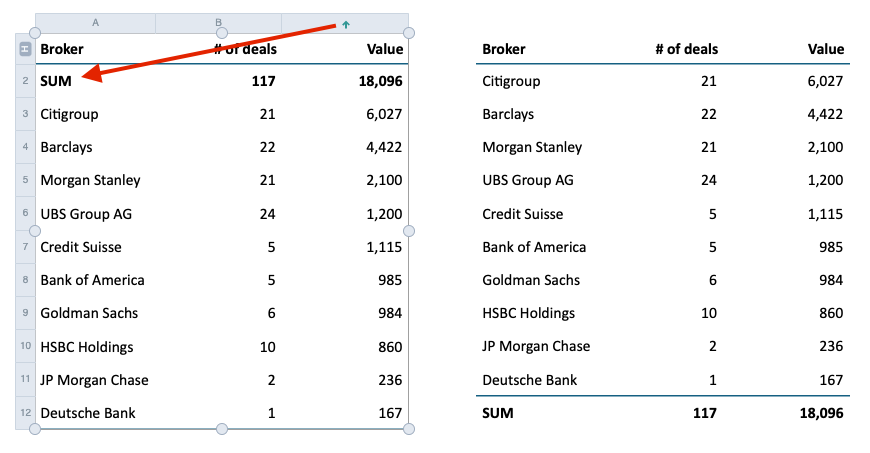
Sorting moves Content rows or columns, while headers, sub-headers, and footers stay in place. Mark a sum row as Footer so a descending sort does not move it to the top. Subtotal boundaries stay in place, and content sorts within those areas. Empty rows or columns do not move.
#Use tags for custom targets
Tags name a reusable selection. Use them for scattered cells, parts of a row, or dynamic criteria that do not fit the built-in row and column types.
Open the Tag Manager in the edge menu or press Ctrl + T. Create a named tag, define what it includes, and reuse it in the Include or Exclude lists of several rules.
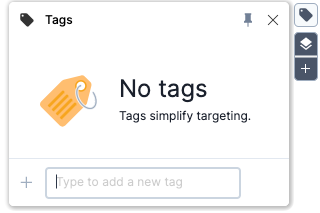
Unlike row and column types, tags do not change which rows stay in place during sorting. They can also use conditions, such as values above a threshold or rows containing a particular word.
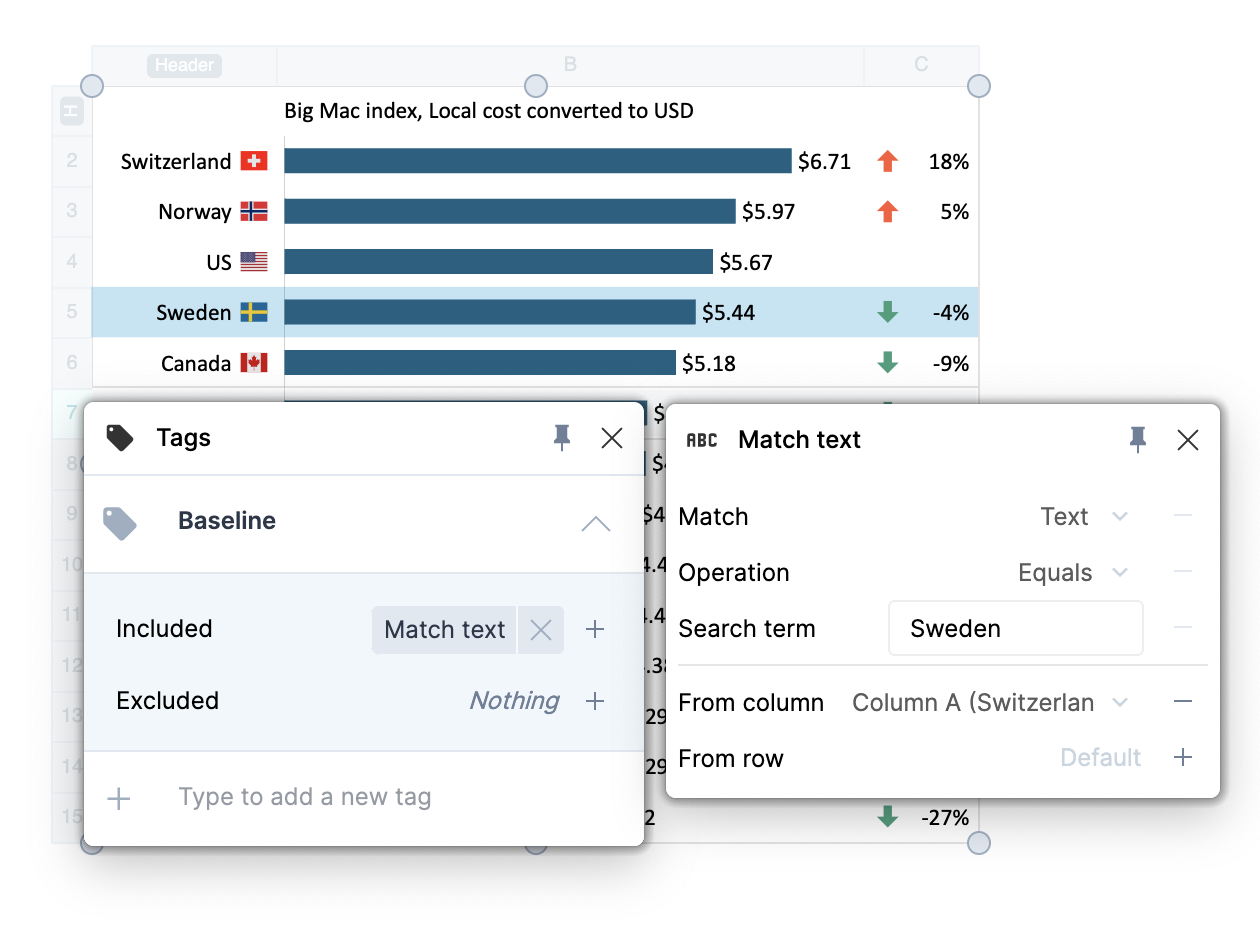
For example, a Baseline tag can match rows where column A contains Sweden. Use that tag across multiple rules so changes to the matching rows remain consistent.
#Understand include and exclude logic
A rule targets its Include list minus its Exclude list. Grunt may express your selection as “everything except the header” so new content rows inherit the formatting.
If a new row looks wrong, check whether the rule targets fixed row IDs or excludes the new row's type. Read Rules for the full targeting model.
#Build charts inside the grid
A rule can render numeric columns as a chart in a separate display column. Hide the raw numbers while keeping them available to the rule. This gives you control over the chart's surrounding labels and layout.
Follow Stacked bars in a Visual Grid for an illustrated walkthrough.
#Troubleshooting: Visual Grid becomes unresponsive
If one Visual Grid stops responding to clicks while other grids work normally, restart PowerPoint to clear the temporary selection state. If it recurs, collect logs and contact support.