
Formulas in the Data Editor
Calculate totals, percentages, and other values with formulas and fixed cell references
Use formulas to calculate values directly in Grunt's Data Editor. Start with =, reference cells, and use functions such as SUM.
#Calculate a total
- Open the Data Editor from the pencil icon in the edge menu, or double-click a chart.
- Select the cell where the result should appear.
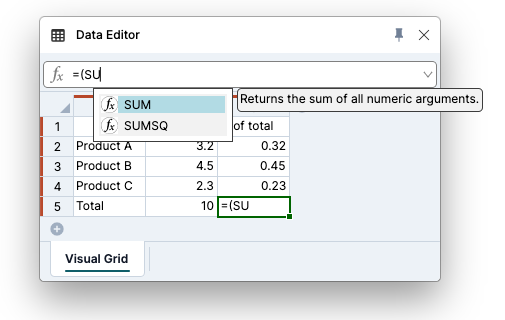
- Type
=suand pressTabto autocompleteSUM. - Select the cells to add and finish the formula, for example
=SUM(B2:B4). - Press
Enterto calculate the result.
#Calculate a share of a total
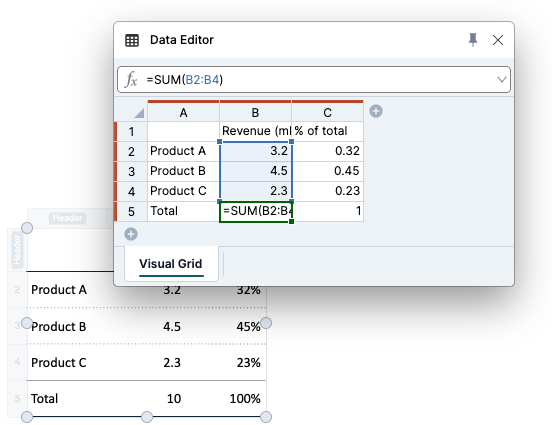
If column B contains revenue and B5 contains the total, enter this in C2:
=B2/$B$5
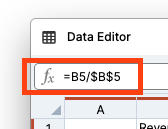
Fill the formula down to calculate the share for each product. The relative reference B2 changes to B3, B4, and so on. The dollar signs keep $B$5 fixed.
#Keep a reference fixed
When editing a formula, use F4 on the reference you want to lock. Check the formula bar to confirm the dollar signs are on the intended row and column.
#Fill formulas and patterns
Use autofill to extend formulas or patterns such as numbers, dates, and weekdays. You can also select a range and use Ctrl + D to fill down or Ctrl + R to fill right.
Check the copied formulas when you mix relative and fixed references.
#Display percentages
A share such as 0.25 may initially appear as a decimal. To show it as a percentage:
- Select the result cells in the Visual Grid.
- Add a Number format rule using the + button or
Ctrl+Enter. - Activate Magnitude and choose Percentages.
- Set the number of decimal places you want.
Number formatting changes how the result appears, while preserving its numeric value. See Number format rule.
#Formulas in Excel-connected grids
The Visual Grid tab includes changes you make in Grunt. The Excel data tab stays read-only so you can compare those changes with the source workbook.
Editing an Excel-linked cell creates an override; it does not write a formula or value back to Excel. Right-click Reset cells to original value or use Clear all to return to the source values. If the calculation belongs in your source model, maintain it in Excel and refresh the connection instead.