
Manage the Content Library
Organize company templates and set viewer, editor, and administrator access
Content managers maintain the shared company workspace. Your organization needs the Content Distribution add-on, and designated content managers are assigned through the client portal.
Open Grunt > Library to manage the workspace.
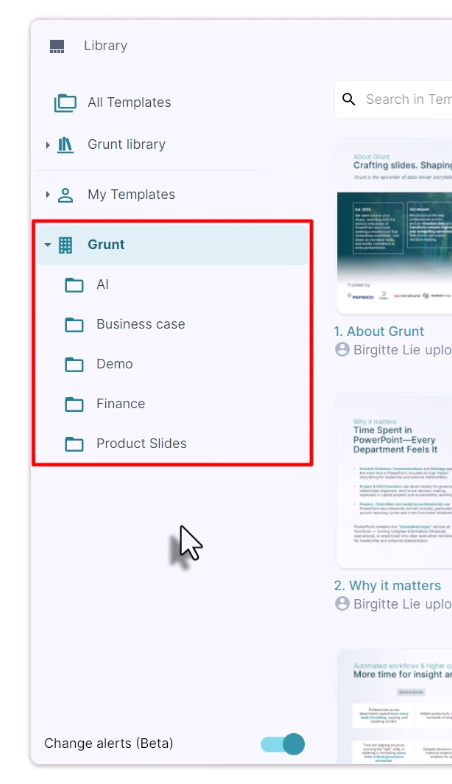
#Create and rename folders
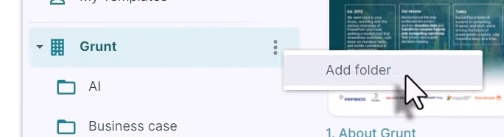
Use the company's ⋯ menu and choose Add Folder. To rename an existing folder, open that folder's ⋯ menu and choose Rename.
Choose descriptive names based on a department, use case, or content type so people can find the right material.
#Set folder permissions
Open the folder's ⋯ menu and choose Manage.
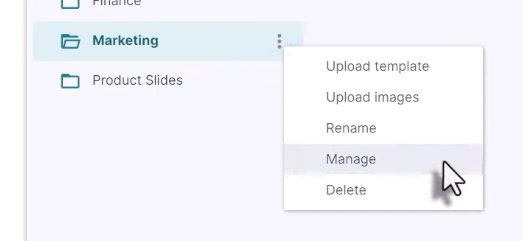
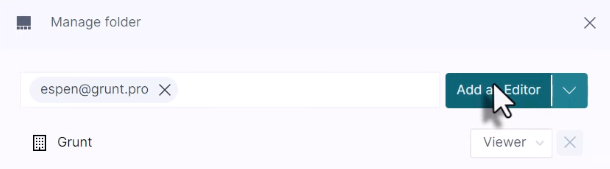
Grant access to the company or add individual users by email. For broadly shared material, company-wide Viewer access lets current and new employees use the templates. Assign Editor or Admin separately to people maintaining the content.
| Access | See folder | Insert templates | Edit or delete originals | Manage folder access |
|---|---|---|---|---|
| None | No | No | No | No |
| Viewer | Yes | Yes | No | No |
| Editor | Yes | Yes | Yes | No |
| Admin | Yes | Yes | Yes | Yes |
A Viewer can edit their inserted copy; that does not change the shared original.
#Make a new folder visible
New company folders start hidden from other users so you can prepare content before sharing it. When the folder is ready, change the company entry from None to Viewer, or grant access to specific users.
If users still cannot see it, confirm they have access to the add-on and ask them to restart PowerPoint.
#Maintain templates
Select a template and use its available controls to edit, rename, or delete it. Check which item you selected before changing a shared original.
Read Content Library for saving and inserting content, or Grunt Academy for guided tutorials.