
Slide Masters
Set presentation-wide branding, layouts, placeholders, colors, and fonts
A Slide Master defines shared presentation styling: fonts, colors, backgrounds, logos, and content placement. Its layouts define the slide types you choose when adding a slide.
The master is stored inside the presentation, so it travels with the file when you share it. Changes to a master or layout affect slides that use it, subject to any formatting overrides on those slides.
#Open Slide Master view
Open View > Slide Master in PowerPoint. The left pane shows the master at the top, with its layouts underneath. Work within your company's existing master when you want to preserve its branding.

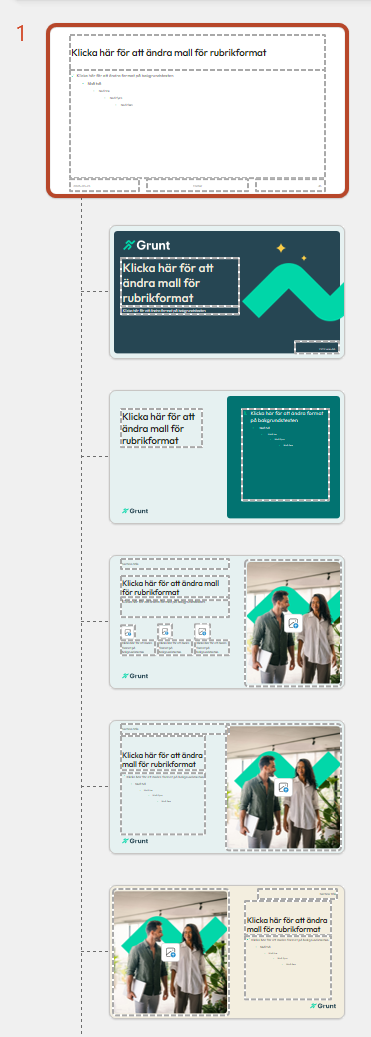
A presentation can contain several masters for different themes or styles. Check that you are changing the one used by the relevant slides.
#Edit a layout
Select the layout you want to change. Adjust its shared objects and content areas, or use Insert Layout to add a new layout.
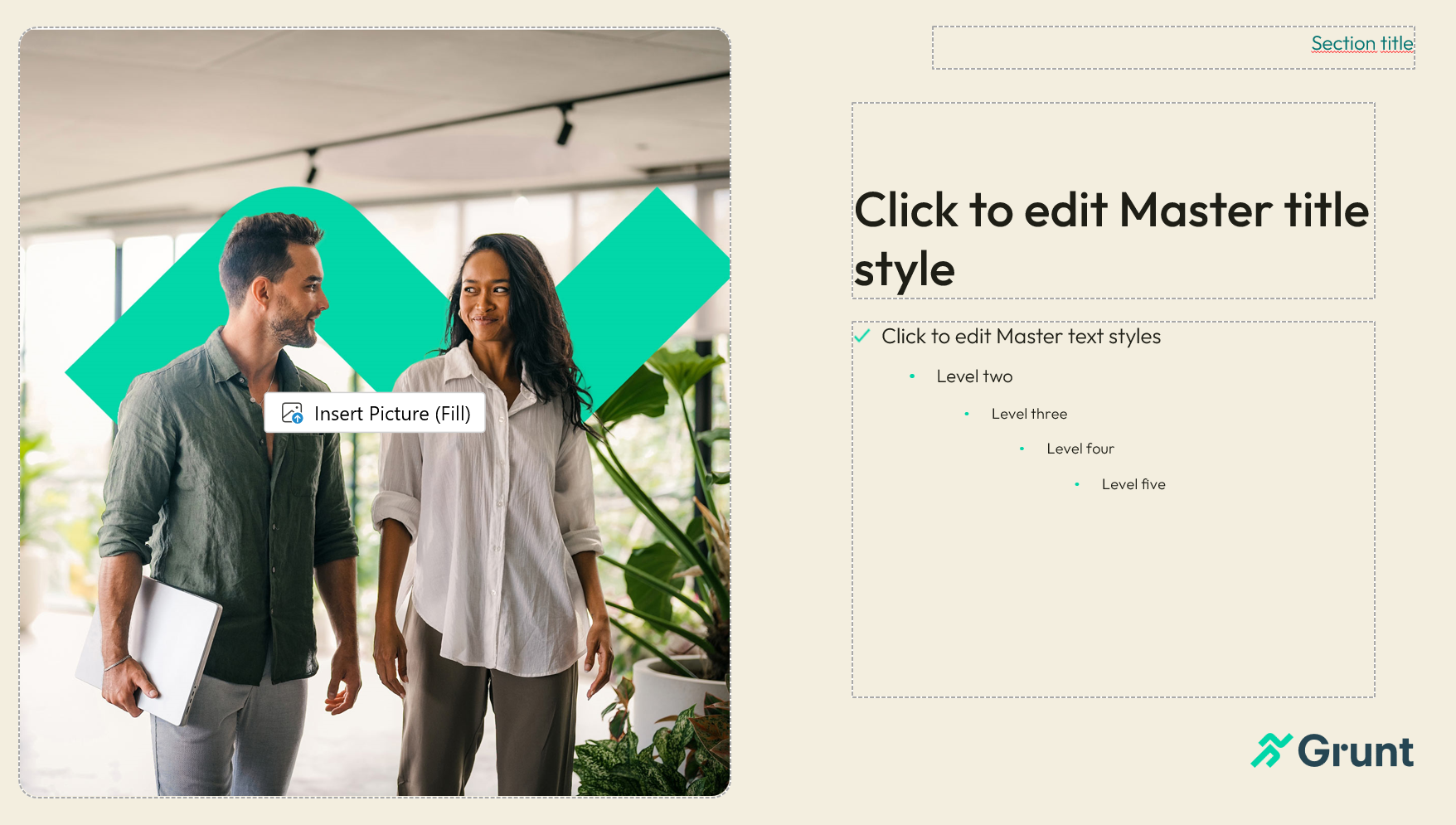
#Add placeholders
Use Insert Placeholder on a layout to define where text, pictures, charts, or other content should go.
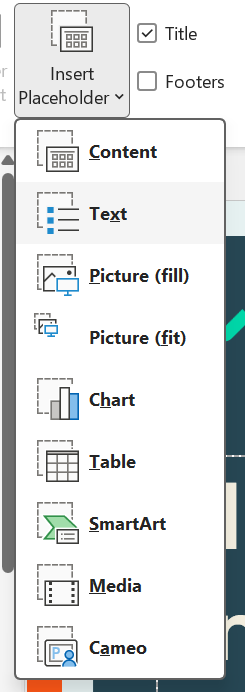
Grunt's Snap to placeholder command uses those areas to size and place Grunt objects consistently.
#Set backgrounds and colors
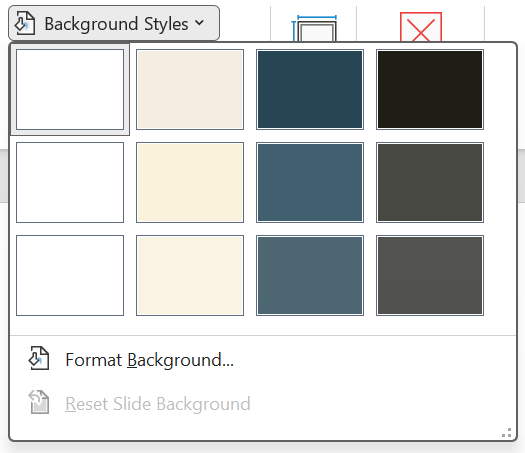
Use Background Styles for the layout's background fills.
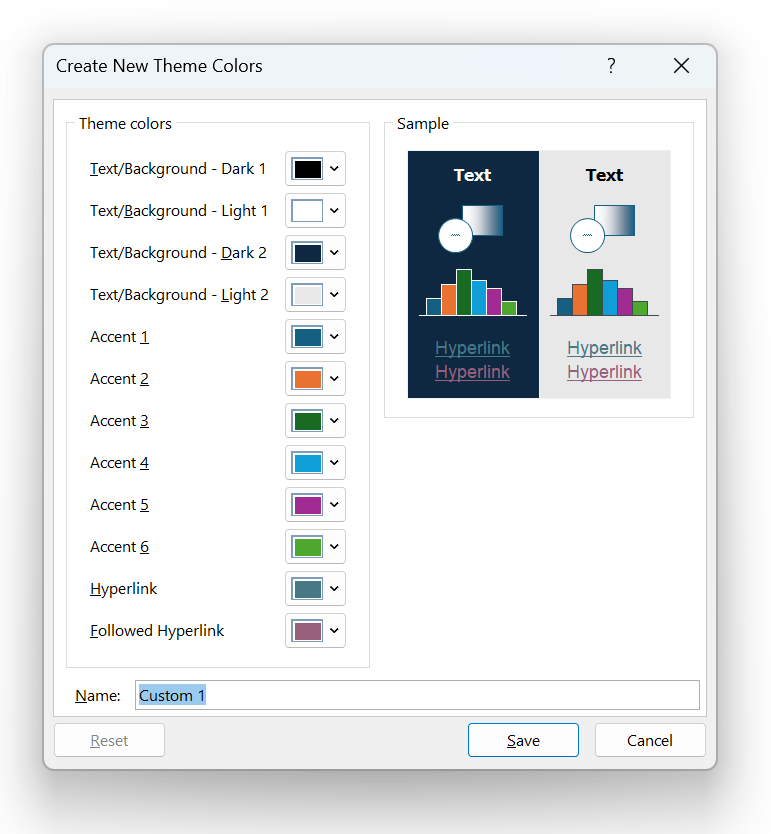
Use the theme color controls to configure text/background colors and the six accent colors. Grunt uses those accent colors when inserting charts and graphics.
#Choose fonts
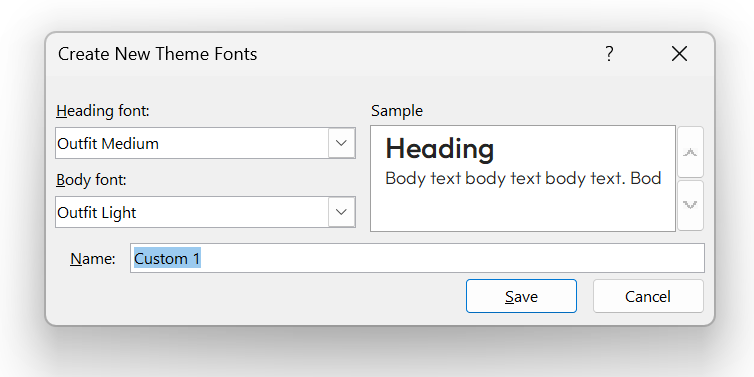
Set Heading and Body fonts in the master's font settings. PowerPoint uses the heading font for headings; Grunt uses the body font for its inserted content.
Close Master View when finished, then verify a normal slide and a Grunt chart. To reuse the theme for future presentations, follow Themes and defaults.
For PowerPoint's own guide, see Microsoft: What is a slide master?.